Start Right,
Day One IT Setup for a New Business,
Email, Devices, WiFi, Files, Microsoft 365

Why day-one IT matters more than most founders think

Why day-one IT matters more than most founders think

Most early-stage businesses move fast, choose tools quickly, and “sort IT later”. That is how you end up with lost documents, shared passwords, random personal emails running the company, and no clear way to onboard the first hire.

A good day-one setup does two things:

      1. Keeps everyone productive, from day one
      2. Reduces avoidable risk, from day one

You do not need enterprise complexity, you need sensible defaults.

The Start Right checklist

(do these in order) – If you only follow one section, follow this.

Step 1, Domain and email, get the foundation right

What you need

    • A domain you own (not your developer, not a designer, not an agency)
    • A business email system tied to that domain
    • A password manager, from day one

Practical guidance

    • Buy your domain from a reputable registrar, enable MFA on the registrar account, store recovery codes safely.
    • Set up email on Microsoft 365 or Google Workspace, for most UK SMEs, Microsoft 365 is the better long-term fit if you expect growth, governance, and secure collaboration.
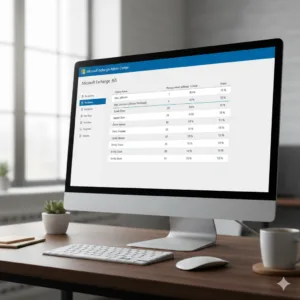
iTO.London StartUP M365 Admin

Common mistakes

    • Domain owned by a third party, you will lose control during a dispute
    • Shared inbox passwords, impossible to audit, impossible to secure
    • No MFA, an avoidable compromise waiting to happen
iTO.London StartUP Domain and email

Decisions to make now (and stick to them)

    • One naming convention, for example:
        • FirstName.LastName@Company.co.uk
        • FirstName.L@Company.co.uk

As attractive as it might look, it is better to use more than just the LastName for the user account/email ID!

    • One shared mailbox approach, for example info@, accounts@, support@
    • One rule, no business accounts on personal Gmail, ever


Step 2, Accounts and access, set the security baseline

As a start, since you are not an IT professional, you do not need to be “highly secure”, you need to be not-easy-to-hack.

Minimum security baseline

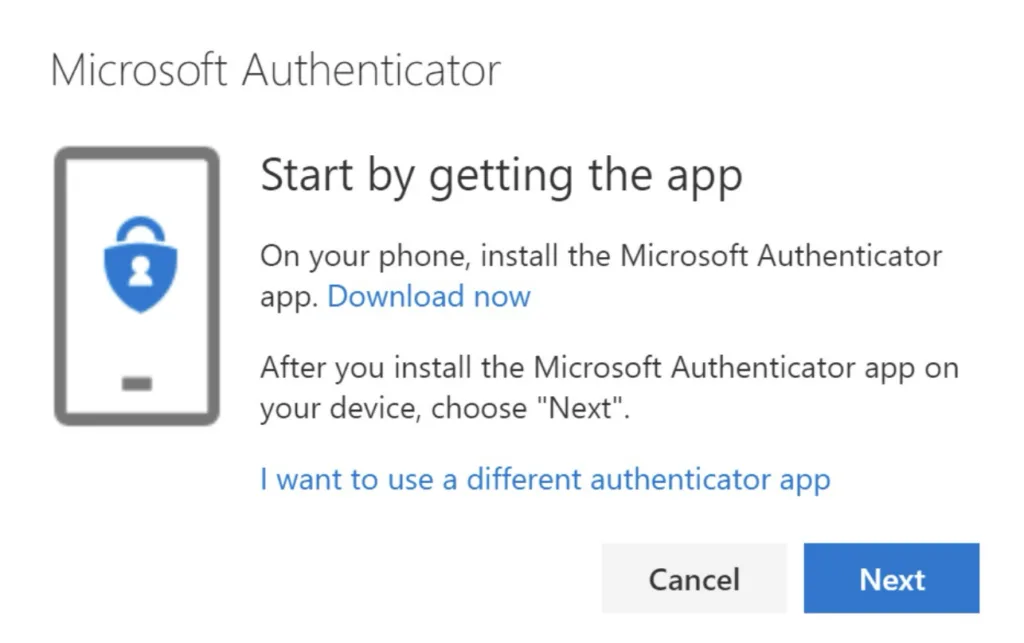
  • MFA for every account, no exceptions

  • Separate admin accounts from day-to-day user accounts
  • A password manager for everyone
  • Recovery codes stored safely, not in the same inbox

iTO.London-M365MFA-Logo

If you are using Microsoft 365

  • Turn on MFA tenant-wide
  • Use Conditional Access where appropriate (even basic rules make a difference)
  • Disable legacy authentication if still enabled
iTO.London-M365MFA


Security Baseline and Risk Review
Covers Microsoft 365 identity controls, email authentication (SPF/DKIM/DMARC), endpoint posture, backup recoverability, and priority remediation plan.

View Services

Step 3, Devices, standardise early to avoid support chaos

Your first 5–15 devices define your future support burden.

What to aim for

  • 1–2 laptop models maximum
  • Business-grade warranty and next-business-day support where possible
  • Full-disk encryption enabled
  • Endpoint protection, centrally managed
  • A simple join and enrolment process, so a new hire can be productive in under 60 minutes

Practical buying guidance for non-technical founders

  • Choose reliability and warranty over “highest specs”
  • Prefer business lines (better support, longer parts availability)
  • Do not allow staff to buy their own device for work unless you have a formal BYOD policy and a way to secure it

Step 4, WiFi and internet, keep it simple but correctly segmented

WiFi problems cause disproportionate pain. Fix the design once, then forget about it.

Minimum office network setup

  • A business router and managed WiFi (not a consumer all-in-one)
  • Two WiFi networks, Staff and Guest
  • Guest network isolated from business devices and printers
  • Strong WiFi password, rotated periodically, ideally WPA3

If you rely on internet to operate

  • Have a backup connection plan, even a 5G backup can prevent downtime
  • Document how to fail over, test it quarterly
iTO.London-StartUP-WiFi-LAN

Step 5, Files and collaboration, choose one system of record

This is where most businesses create chaos without realising it.

Rule 1, decide where work lives
If you use Microsoft 365:

  • SharePoint for team files and shared folders
  • OneDrive for personal working files and drafts
  • Teams for conversations and quick sharing, but files should still live in the right SharePoint location

Rule 2, create a simple folder structure that scales
Start with a small, sensible structure:

  • Company, Policies and Templates
  • Finance
  • Sales and Marketing
  • Operations
  • Projects (by client or by project)
  • HR (restricted access)

Rule 3, set permissions by role, not by person

  • Avoid granting permissions to individuals one by one
  • Use groups, for example Finance Team, Leadership, Operations


Book a 30-minute review with us!
Covers Microsoft 365 identity controls, email authentication (SPF/DKIM/DMARC), endpoint posture, backup recoverability, and priority remediation plan.

Request Today

Step 6, Backups and recovery, “we can restore” NOT “we have a backup

Most businesses only learn this lesson after the first incident.

Day-one minimum

  • For Microsoft 365, understand what Microsoft covers and what you are responsible for, then implement an appropriate backup strategy
  • For laptops, ensure encryption, then ensure cloud file sync, then ensure restore capability

Your goal

  • You can restore a deleted file
  • You can recover access after an account compromise
  • You can rebuild a laptop quickly if it fails

Step 7, Onboarding and offboarding, design it before the first hire

This is the most overlooked “day-one” step, but it saves time and reduces risk immediately.

Onboarding checklist

  • Create account, assign licence
  • Add to groups and Teams
  • Configure MFA and recovery
  • Device enrolment and security baseline
  • Access to key tools and shared mailboxes
  • Confirm file locations and folder structure

Offboarding checklist

  • Disable account, revoke sessions
  • Transfer ownership of files and mailbox
  • Remove from groups and shared access
  • Recover device, wipe if required
  • Document what was done

Quick start option, a 90-minute “minimum viable setup”

If you need to be operational today, do this first:

  1. Buy domain, secure registrar with MFA

  2. Set up Microsoft 365, create users, enable MFA

  3. Create shared mailboxes (info@, accounts@)

  4. Standardise device approach for the next 3 hires

  5. Create SharePoint structure, migrate critical files

  6. Create Staff and Guest WiFi

  7. Write one-page onboarding checklist and use it immediately

Then improve iteratively over the first 30 days.

Frequently asked questions:

For many SMEs, both can work. Microsoft 365 tends to be stronger when you want integrated identity management, device management, and more structured collaboration as you scale. Google Workspace can be simpler for very small teams, but can require additional tooling to reach similar governance.
Yes. Credential theft and phishing are common, and MFA is one of the highest impact, lowest effort controls you can deploy immediately.
Mixing personal and business accounts, then trying to unwind it later. The second biggest is having no defined place where files live.
If you want this implemented quickly, cleanly, and documented, we deliver this as a structured setup, then ongoing managed support.

- Service area: Start-up Enablement, Modern Workplace, Cybersecurity and Compliance, on the iTO.London Services page

- Support plans: Essential 10 and Essential 25 for smaller teams, Business and Concierge plans for larger teams or higher assurance

- Outcome: a secure, scalable setup with a clear onboarding process and a single system of record for files and collaboration


Book a 30-minute review with us!
Covers Microsoft 365 identity controls, email authentication (SPF/DKIM/DMARC), endpoint posture, backup recoverability, and priority remediation plan.

Request Today