

Identity-based attacks are now the most common route into a business’s Microsoft 365 environment. Stolen credentials, password spray campaigns, and phishing emails targeting London SMEs have all increased sharply, and a password alone provides almost no meaningful protection. Microsoft 365 security starts with two controls that every organisation should have in place before anything else: Multi-Factor Authentication (MFA) and Conditional Access policies. This guide explains what each control does, how to configure it correctly, and what a Microsoft 365 security consultant would prioritise for a business of your size.
Table of Contents
- Quick Takeaways
- Why MFA Is the First Line of Defence
- Security Defaults vs. Conditional Access Policies
- Configuring Conditional Access for SMEs
- Blocking Legacy Authentication
- Named Locations and Device Compliance
- Licensing Requirements
- Comparing MFA Approaches: Security Defaults, Per-User MFA, and Conditional Access
- Frequently Asked Questions
- References
Quick Takeaways
| Key Insight | Explanation |
|---|---|
| MFA blocks the majority of automated account-compromise attempts | Enabling MFA on all user accounts removes a significant share of credential-based attack paths without requiring complex infrastructure changes. |
| Security Defaults are a starting point, not a finished policy | Security Defaults enforce baseline MFA but do not allow exceptions, location rules, or device-compliance checks. Growing SMEs need Conditional Access. |
| Conditional Access requires at minimum Microsoft Entra ID P1 | Microsoft 365 Business Premium includes Entra ID P1 features, making Conditional Access available to most SMEs without additional licensing costs. |
| Break-glass accounts must be excluded from every Conditional Access policy | Without at least two emergency-access accounts excluded from MFA enforcement, a misconfigured policy can lock administrators out of the entire tenant. |
| Blocking legacy authentication is a high-priority quick win | Protocols such as IMAP, POP3, and Basic Auth do not support MFA and are a common vector for credential-stuffing attacks. They should be blocked explicitly. |
| Start all new Conditional Access policies in report-only mode | Report-only mode captures the effect of a policy without enforcing it, allowing administrators to review impact on service accounts and guest users before going live. |
| Phishing-resistant MFA methods are more secure than SMS codes | FIDO2 security keys and Microsoft Authenticator with number-matching significantly reduce the risk of MFA fatigue and real-time phishing bypass attacks. |
Why MFA Is the First Line of Defence
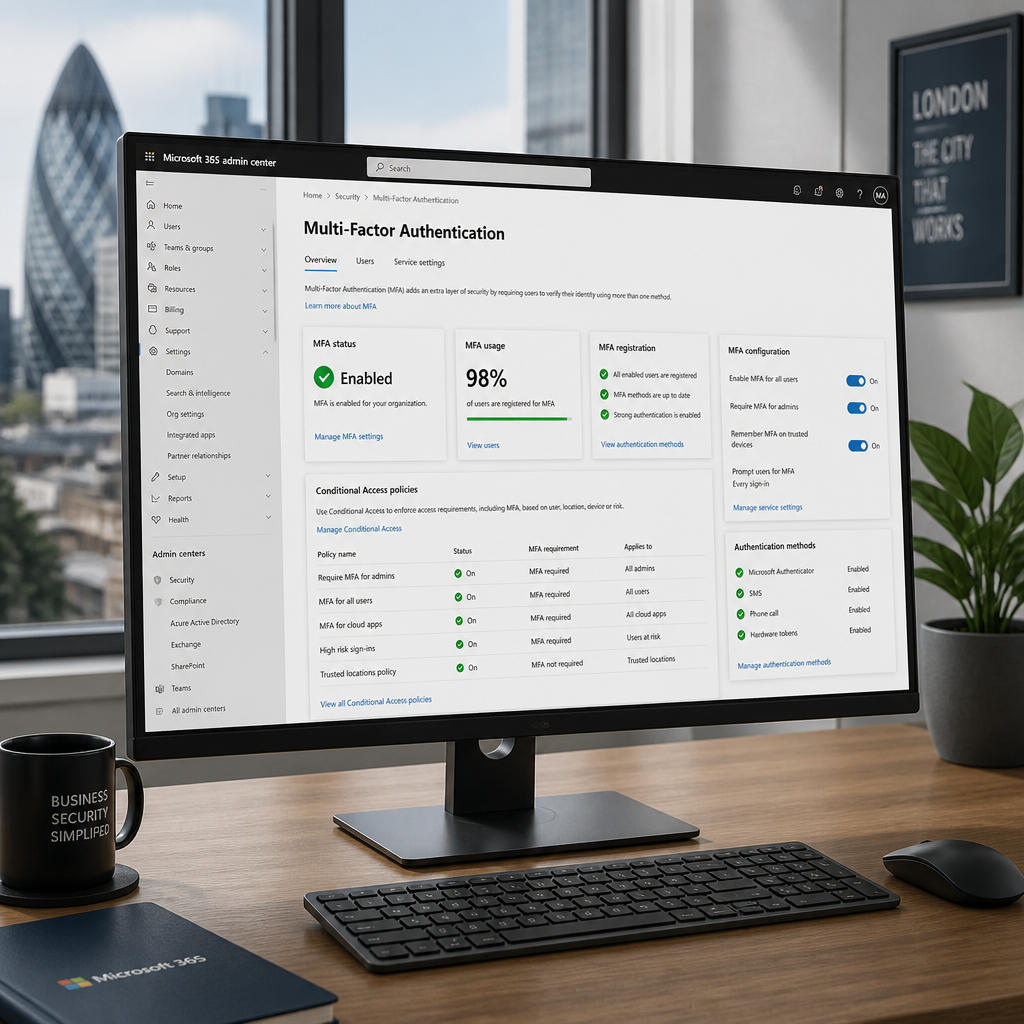
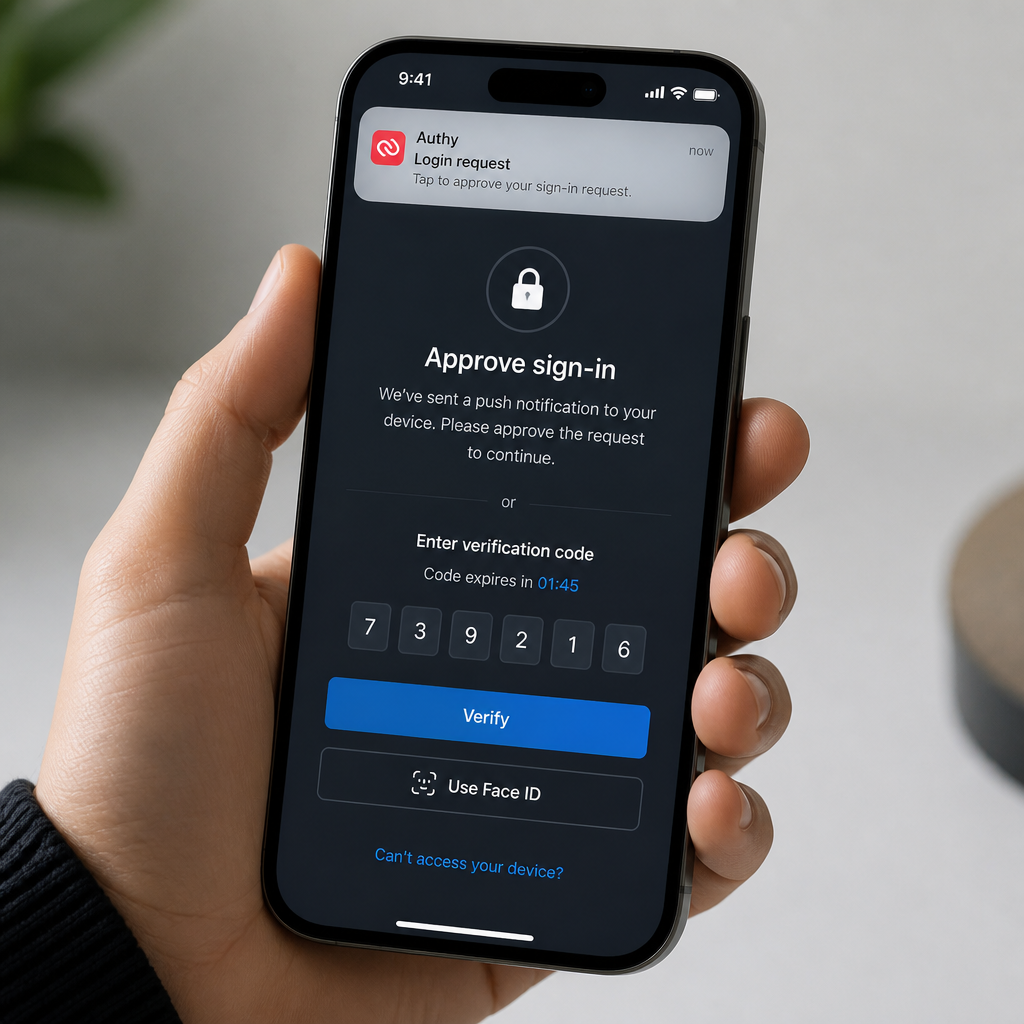
Multi-Factor Authentication requires a user to verify their identity through a second method, typically the Microsoft Authenticator app, before gaining access to Microsoft 365 services. Even if an attacker obtains a valid username and password, they cannot complete sign-in without the second factor. For London SMEs managing client data, financial records, or regulated information, this is not optional hardening; it is the baseline.
The National Cyber Security Centre (NCSC) has consistently highlighted MFA as one of the most effective controls available, noting that several high-profile corporate data breaches in recent years would probably not have occurred had mandatory MFA been enforced. For SMEs operating on tighter security budgets, MFA delivers a measurable reduction in account-takeover risk at relatively low cost.
Not all MFA methods carry equal protection. SMS-based one-time codes remain vulnerable to SIM-swapping and real-time phishing attacks, where an attacker relays the code before it expires. The Microsoft Authenticator app with number-matching, and FIDO2 hardware security keys, are the methods a Microsoft 365 security consultant would recommend first. Microsoft Entra ID supports FIDO2 security keys and passkeys natively, making phishing-resistant MFA practical for businesses of any size.
Pro tip: Require MFA registration as part of onboarding, not as a retrofit. Asking existing staff to enrol retroactively creates resistance. Embedding it in the new-starter workflow makes it a standard step rather than an interruption.
Security Defaults vs. Conditional Access Policies
Microsoft offers two distinct mechanisms for enforcing MFA in a Microsoft 365 tenant. Understanding the difference is essential before deciding which one to deploy.
What Security Defaults Do
Security Defaults are a free, one-click baseline that Microsoft enables on all new tenants. They enforce MFA for all users, require administrators to use MFA on every sign-in, and block most legacy authentication protocols. For a very small team that is entirely office-based and has no complex access requirements, Security Defaults provide acceptable baseline protection quickly.
The limitation is that Security Defaults are binary. They do not allow exceptions for specific users, applications, or locations. You cannot exclude a service account, apply different rules to remote workers, or enforce additional checks only when a sign-in originates from outside the United Kingdom. When your business grows or your working patterns become more complex, Security Defaults become a constraint rather than a control.
What Conditional Access Policies Do
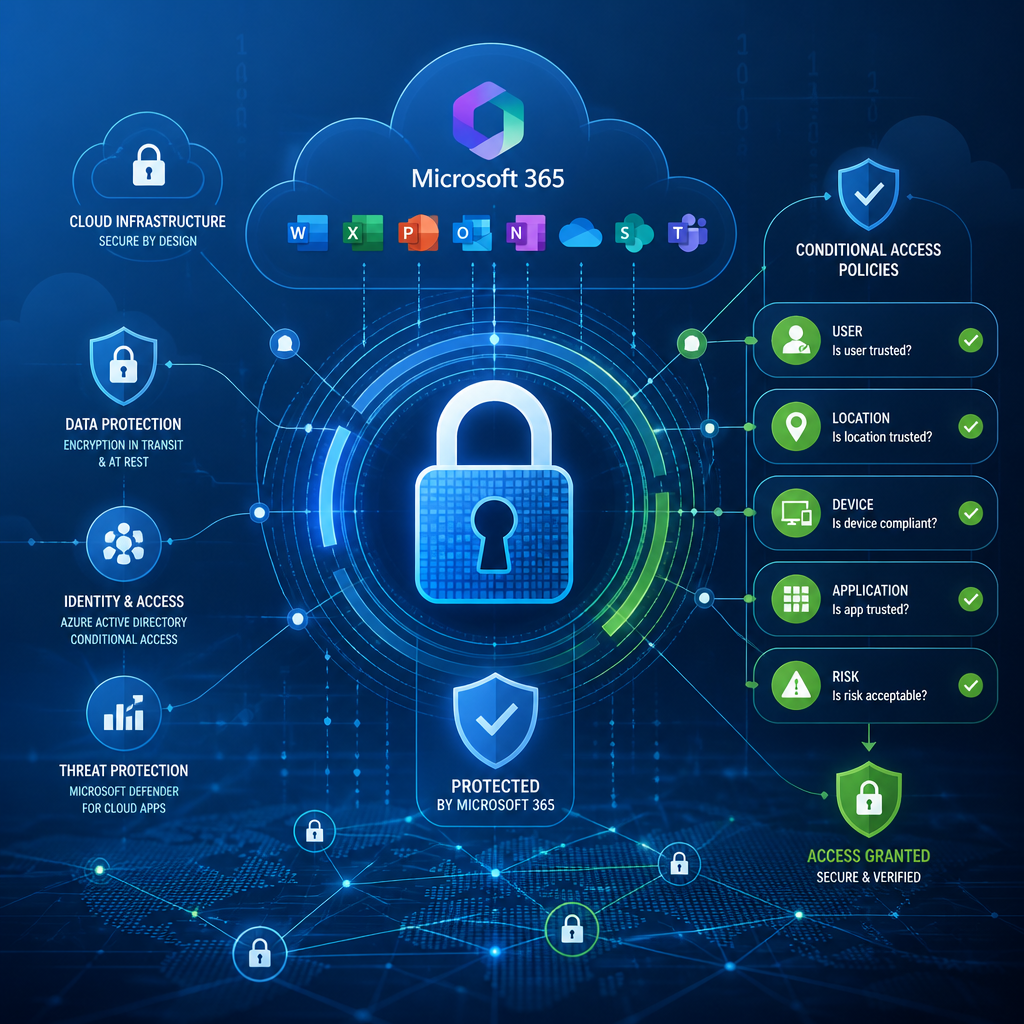
Conditional Access is a policy engine built into Microsoft Entra ID. It evaluates every sign-in attempt against a set of conditions and applies the appropriate access control. Conditions can include the user’s role, the application being accessed, the device’s compliance status, the sign-in location, and the assessed risk level of the session. The outcome of each evaluation is either grant access, grant access with additional controls such as MFA, or block access.
For an SME with remote workers, a mix of company-owned and personal devices, or any compliance obligation such as Cyber Essentials or ISO 27001, Conditional Access is the correct tool. It enables granular, auditable policies rather than a blanket toggle.
Conditional Access evaluates context at every sign-in, allowing organisations to enforce stronger controls where risk is higher and reduce friction where it is demonstrably lower. This context-aware approach is what separates a functional security posture from a theoretical one.
Configuring Conditional Access for SMEs
A Microsoft 365 security consultant working with a London SME would typically recommend a phased rollout, starting with the highest-impact policies and expanding from there. The following sequence reflects standard practice for a business moving from Security Defaults or no MFA enforcement to a managed Conditional Access deployment.
Phase One: Core Baseline Policies
The first policies to create are the ones that remove the most common attack paths. Before deploying any policy in enforced mode, verify that emergency-access (break-glass) accounts exist, review which service accounts and legacy applications are in use, and set all policies to report-only mode first. Report-only mode records what the policy would have done without blocking any access, allowing administrators to spot unintended consequences before enforcement.
The core baseline consists of four policies: require MFA for all users, require MFA for all administrators on every sign-in, block legacy authentication protocols, and require MFA for Azure management access. Together, these four policies address the majority of credential-based attack paths without introducing complex device or location logic that could disrupt operations.
Phase Two: Location and Device Controls
Once the baseline is stable, the next phase introduces Named Locations and device-compliance checks. Named Locations define trusted IP address ranges, such as the company’s London office network, that can be used to apply different policies to on-premises versus remote sign-ins. A policy can, for example, require a compliant device when signing in from an unrecognised location, while allowing a streamlined experience from a trusted office network.
Pro tip: When defining Named Locations, include your office’s public IP address range but review it whenever your broadband provider reassigns addresses. An outdated Named Location quietly breaks location-based policies without generating an obvious error.
Blocking Legacy Authentication
Legacy authentication protocols, including IMAP, POP3, SMTP AUTH, and older versions of Exchange ActiveSync, do not support modern authentication and therefore cannot enforce MFA. Attackers specifically target these protocols because a valid username and password is all that is required to authenticate, bypassing any MFA policy entirely. Blocking legacy authentication is therefore not simply a configuration preference; it is a prerequisite for MFA to be effective.
A Conditional Access policy that targets all users, all cloud apps, and the condition “other clients” (which is how Microsoft labels legacy authentication clients) with a block access grant, achieves this in a single policy. Before enabling enforcement, run the policy in report-only mode and review sign-in logs for any applications that still rely on legacy authentication. These typically include older shared mailbox configurations, room booking systems, or line-of-business applications that connect to Exchange directly.
Any application that genuinely cannot be migrated to modern authentication should be migrated or replaced rather than exempted from blocking. A permanent exemption for a legacy application creates a persistent gap in MFA coverage that attackers will eventually find.
Named Locations and Device Compliance
Named Locations and device-compliance policies work together to build what is commonly called a Zero Trust access model, where access decisions are based on verified context rather than assumed network trust.
Named Locations in Practice
Named Locations are defined in the Microsoft Entra ID portal and can specify individual IP addresses or CIDR ranges. A common and practical configuration for a London-based SME is to define the office network as a trusted Named Location, then apply a policy that requires a compliant or Entra-joined device when sign-in occurs from outside that location. This enforces stronger controls on remote and home-working sessions without adding friction for staff working from the office.
Device Compliance and Microsoft Intune
Device-compliance policies are configured in Microsoft Intune and define the minimum security requirements a device must meet to be granted access. Requirements typically include a minimum operating system version, disk encryption enabled, and no known malware detections. When a Conditional Access policy requires a compliant device, Intune checks the device against these requirements at sign-in and reports its compliance status to Entra ID in real time.
For SMEs with a mix of company-owned and personal (BYOD) devices, device compliance adds a meaningful layer of assurance that MFA alone does not provide. A device can pass MFA but still be running an unpatched operating system or have no endpoint protection. Compliance policies close that gap.
Licensing Requirements
Conditional Access policies require at minimum a Microsoft Entra ID P1 licence per user. Businesses on Microsoft 365 Business Premium already have access to Entra ID P1 features, which means Conditional Access is available without additional licensing costs for that plan. Businesses on Microsoft 365 Business Basic or Business Standard will need to add Entra ID P1 licences, or upgrade their plan, to access Conditional Access.
Risk-based Conditional Access policies, which evaluate the assessed sign-in risk and user risk in real time, require Microsoft Entra ID P2, which is part of Microsoft 365 Business Premium or available as a standalone add-on. Risk-based policies are valuable for businesses handling sensitive data, as they can automatically enforce additional verification when a sign-in is flagged as anomalous, such as when a user appears to sign in from two different countries within minutes.
Microsoft 365 Business Premium also includes Microsoft Defender for Business and Microsoft Intune, making it the most capable licensing tier for SMEs that want a comprehensive security posture without enterprise-level licensing costs. For iTO.London clients, the quarterly technology review process includes a licensing audit to confirm that security capabilities in use are matched to the licences held.
Comparing MFA Approaches: Security Defaults, Per-User MFA, and Conditional Access
| Approach | Best Suited For | Key Limitations |
|---|---|---|
| Security Defaults | Small teams with simple, uniform access needs and no compliance obligations. Fastest to enable with no additional licensing cost. | No exceptions, no location or device rules, no service account exclusions. Cannot coexist with Conditional Access policies. |
| Per-User MFA | Legacy deployments or transitional configurations. Allows MFA to be enabled for individual users without additional licensing. | Not context-aware. Generates MFA prompts for every sign-in regardless of device or location. Microsoft recommends migrating away from this approach in favour of Conditional Access. |
| Conditional Access Policies | SMEs with remote workers, BYOD devices, regulated data, or compliance requirements. Provides granular, auditable, context-aware access controls. | Requires at minimum Microsoft Entra ID P1. Requires careful planning, break-glass account setup, and a report-only testing phase before enforcement. |
Frequently Asked Questions
What is the difference between MFA and Conditional Access in Microsoft 365?
MFA is an authentication method that requires a second form of verification beyond a password. Conditional Access is a policy engine that determines when and how MFA is required, based on context such as user role, location, device status, and application sensitivity. MFA is the control; Conditional Access is the mechanism that governs where and when it is applied.
Does Microsoft 365 Business Premium include Conditional Access?
Yes. Microsoft 365 Business Premium includes Microsoft Entra ID P1 features, which provide access to Conditional Access policy functionality. Businesses on Business Basic or Business Standard plans need to add an Entra ID P1 licence per user or upgrade their plan to access Conditional Access.
What is a break-glass account and why does it matter for Conditional Access?
A break-glass account is an emergency-access administrator account that is excluded from Conditional Access and MFA policies. Its purpose is to retain tenant access if a misconfigured policy locks out all administrators. Best practice is to maintain at least two such accounts, store their credentials securely offline, and test them regularly. Without break-glass accounts, a single policy error can result in a complete tenant lockout.
How do I know if my organisation is still using legacy authentication?
The Microsoft Entra ID sign-in logs record the client application used for each sign-in attempt. Filtering these logs for sign-ins where the client app field shows values such as “IMAP”, “POP3”, “SMTP AUTH”, or “Other Clients” will identify any users or applications still authenticating via legacy protocols. Creating a Conditional Access policy in report-only mode targeting legacy authentication will also surface this information before enforcement begins.
Is SMS-based MFA acceptable for a London SME?
SMS-based MFA is significantly better than no MFA, but it is not the recommended standard. SMS codes can be intercepted via SIM-swapping or bypassed by real-time phishing attacks. The NCSC and Microsoft both recommend app-based authentication, such as the Microsoft Authenticator with number-matching, as the minimum standard. FIDO2 hardware keys offer the highest level of phishing resistance and are appropriate for privileged administrator accounts and finance roles.
Can Conditional Access policies affect guest users and external collaborators?
Yes. Guest users who access your Microsoft 365 tenant through Microsoft Entra B2B collaboration are subject to your Conditional Access policies unless explicitly excluded. This is worth reviewing if your business shares SharePoint sites, Teams channels, or other resources with external parties. Policies requiring device compliance can block guest users on personal devices unless a separate policy with appropriate controls is defined for the guest user population.
What does a Microsoft 365 security consultant typically review first?
The first priorities in a security review are MFA coverage across all users and administrators, whether Security Defaults or Conditional Access policies are in place, whether legacy authentication is blocked, and whether break-glass accounts exist and are documented. These four areas represent the most commonly exploited gaps in Microsoft 365 tenants and can typically be assessed and remediated within a single engagement.
If you manage a London SME and would like to share your experience with Microsoft 365 security, or if you have questions about your current configuration, please leave a comment below.
References
- Microsoft documentation on Conditional Access in Microsoft Entra ID, including licensing requirements and policy architecture
- Microsoft guidance on Microsoft-managed Conditional Access policies and MFA enforcement for Entra ID tenants
- Analysis of the NCSC updated MFA guidance published in October 2024, covering phishing-resistant methods and NIS2 requirements
- Practical guidance on building and deploying Conditional Access policies, covering licensing, MFA enforcement, and legacy authentication blocking